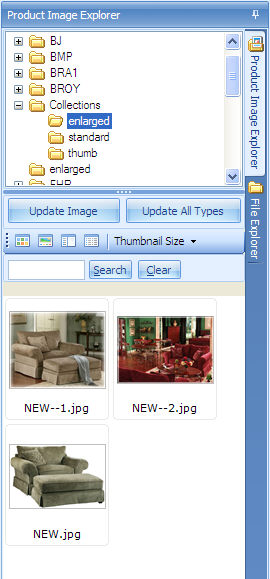
The right pane of the Update Product Images screen contains the Product Image Explorer and File Explorer tabs, along with additional tools you use to search for and update images.
This tab enables the right pane to be a viewer for all product, collection, and product family images currently stored inside the database. The viewer in the top of the right pane displays only the path defined as the Replication Directory on the Image Management Options screen or the Image Directory Tab of the Image Replication Configuration process. This is where the images have been replicated on the local PC.
When the Product Image Explorer tab is selected, the top portion of the pane displays a Windows® Explorer-type tree structure that is limited to browsing the replicated product image folder on the local PC. The folder contains the images already attached to products/collections/families. Click the plus (+) sign to expand a folder's contents. The bottom section displays thumbnail size images of any images in the folder selected in the top section.
Additionally, if you have a new image for a product already stored inside the image database, you can place the new image in the appropriate spot inside the replicated image folder structure, select that image, and click the Update Image button to move that image into the STORIS image database. This movement is done without any re-sizing. Or, you can click the Update All Types button to update all image types - large, standard, and thumbnail.
If you double-click on an image, you launch the image in the editing application defined on the Image Editor tab. After you edit the image, save it and then click the Update Image button or Update All Types button to move the edited image back into the STORIS database.
The middle section of the right pane contains additional tools you can use when searching for and maintaining your image files.
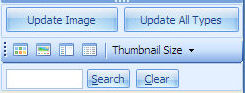
The Update Image and Update All Types buttons are available only when the Product Image Explorer tab is selected.
 Update Image, Update All Types
 Thumbnails,
  Gallery,
  Pane,
Pane,  Details
When the File Explorer tab is selected, the top portion of the pane displays the Windows® Explorer file manager. The bottom section displays all the images in the selected folder. Use the File Explorer tab to search for new images and import them into the image database. You use this tab to drag and drop images into the database.
The tab has a top and bottom section. The top section allows you to navigate to any available folder structure. When you first access this tab, the window defaults to the Desktop folder. When you select a folder, the tab displays all images in the folder in the bottom section of the pane. To import an image into the database, drag the image from the right pane to the product row or image view in the left pane. The image "attaches" to the selected product. Note that the Auto-Format setting affects this process. (See Attaching Images to Products/Collections in the Update Product Images topic.)
 The File Explorer tab allows you to access local CD drives, so if you have images on a CD, you can drag and drop them directly into the STORIS image repository.
If you double-click on a product thumbnail, you launch that image in the default application associated with the thumbnail's file extension.
