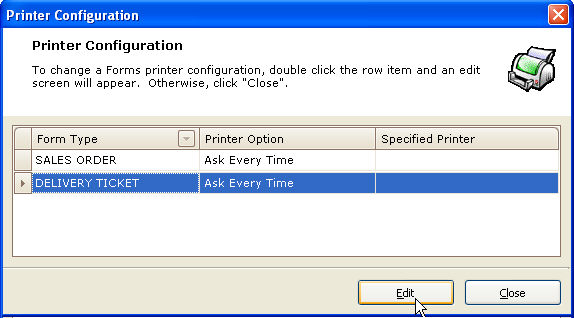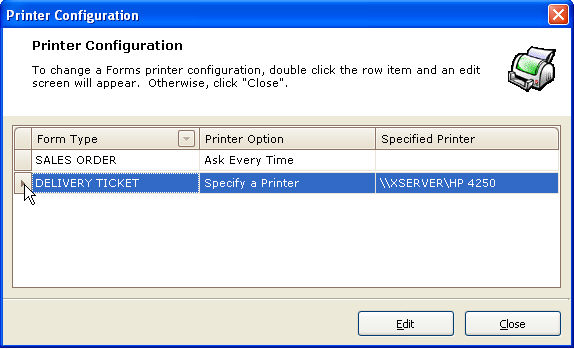
Use this option to access the Printer Configuration screen for the Forms Designer. This screen displays, for all form types, any existing printer options and specified printers for the log-on user. Any changes you make affect the log-on user only.
If you click on the Edit button, the Print Settings screen appears for the selected form type. See below.
 User/User Group security restrictions may prevent you from changing the printer assignment. Check with your system administrator for detail.
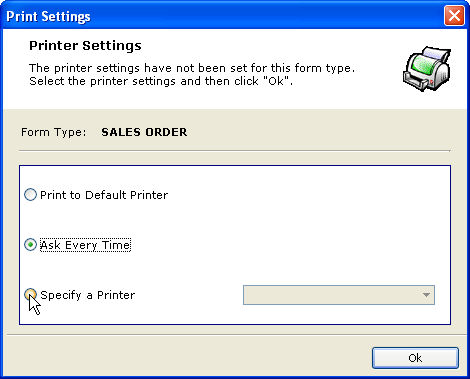
Print to Default Printer - always print to the default printer specified in Windows® on the user’s workstation.
Ask Every Time - each time you print the form, the Windows Print Dialog box appears, which you use to specify the print destination.
Specify a Printer - select a specific Windows printer to use with this form type. When you click on the button at this field, the drop-down Arrow button activates, from which you can access a list of all printer options available on the workstation, including STORIS Print Preview.
The Print Settings screen also appears the first time a user attempts to print a form type within STORIS. For example, assume you are printing a sales order document from the Enter a Sales Order routine and the system prompts "Would you like a printed copy of this order?". If the form type has never been printed, the Print Settings window displays as shown above, and you must specify a print destination for the form type.
Once you establish the printer settings for each form type, you can use the Assign Printer for Enhanced Laser Forms to view and/or change these settings.
To change a setting, double-click the line of the form type or select the line and click the Edit button at the bottom of the window. The Print Settings window displays, from which you can select another option.