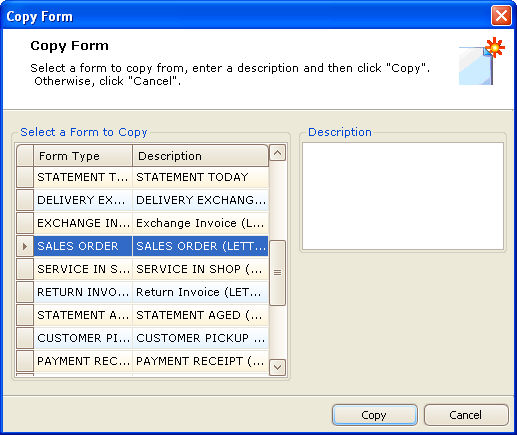
To create a new form template by copying an existing form, click the Copy Form button in the left pane of the Form Management window. The Copy Form window displays.
Select the form you want to copy by clicking the line in the grid. Next, click in the Description box. Click in the box to place the cursor and enter a text description of the new form.
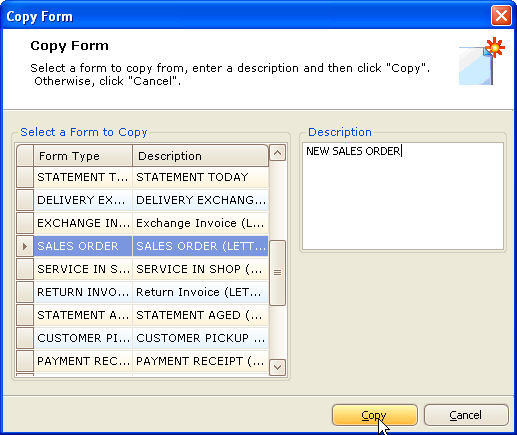
When finished, click the Copy button at the bottom of the Copy Form window. You return to the Form Management window, and the newly created form lists in the grid.
The original form type appears in the grid next to the new description, the user's initials, and the date of this action in the Modified Date column. The boxes in the Active and STORIS Standard columns remain are unchecked.
To modify the new template, follow the Design a Form instructions.